

Remove People from Photos
Brush over a tourist, a stranger or anyone who walked into your shot. The AI removes the person and fills in what was behind them.
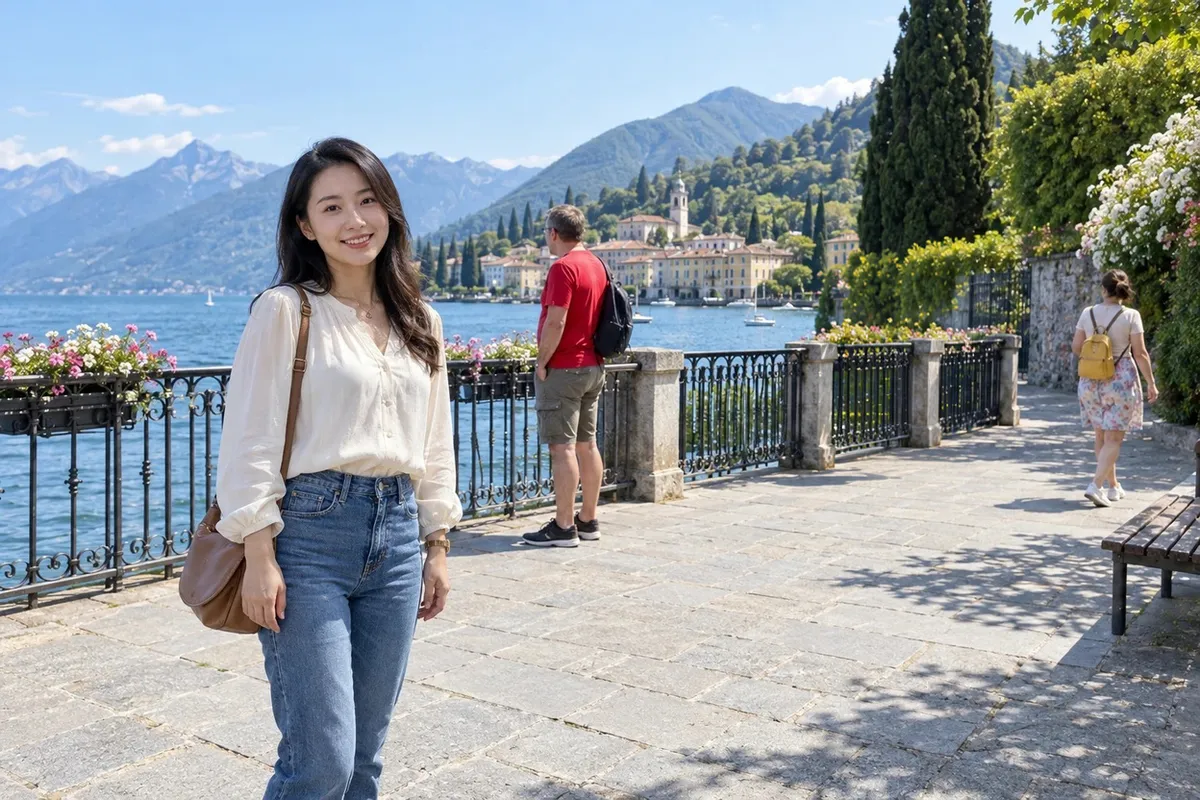
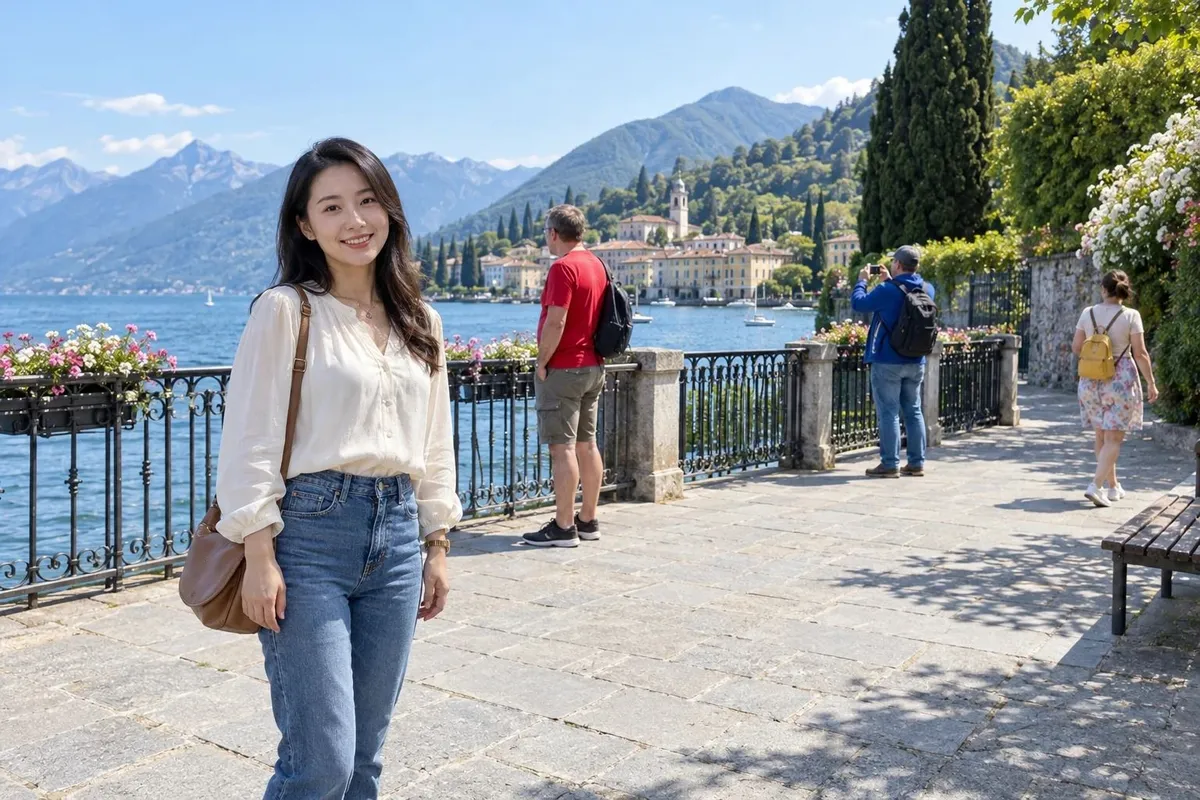 BeforeAfter
How to remove people from photos
- 1
Upload the photo
Choose a JPG, PNG or WebP photo from your phone or computer. People is already selected as the removal type.
- 2
Brush over the person
Paint over the whole person, including feet, shadow and anything they are holding. A slightly bigger brush works better than a tight outline.
- 3
Erase and download
Click Erase and wait about 30 seconds. Toggle between the original and the result, then download the clean photo.
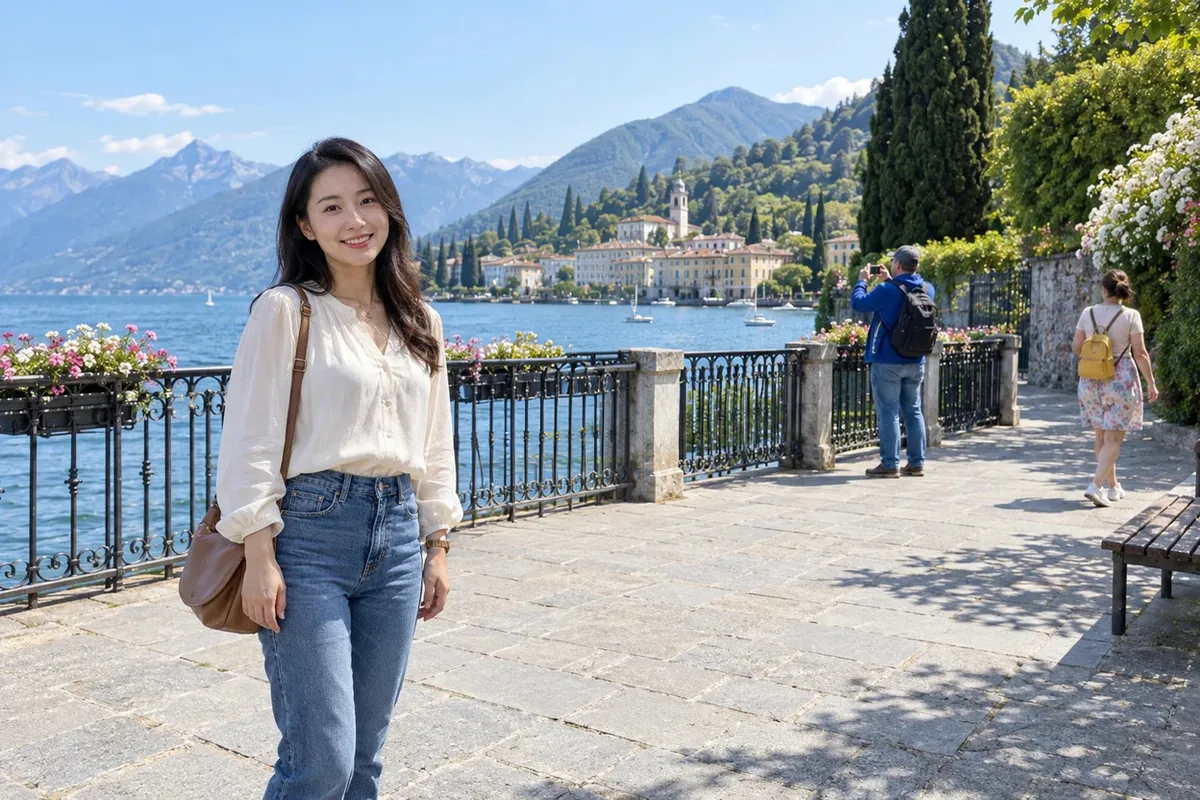
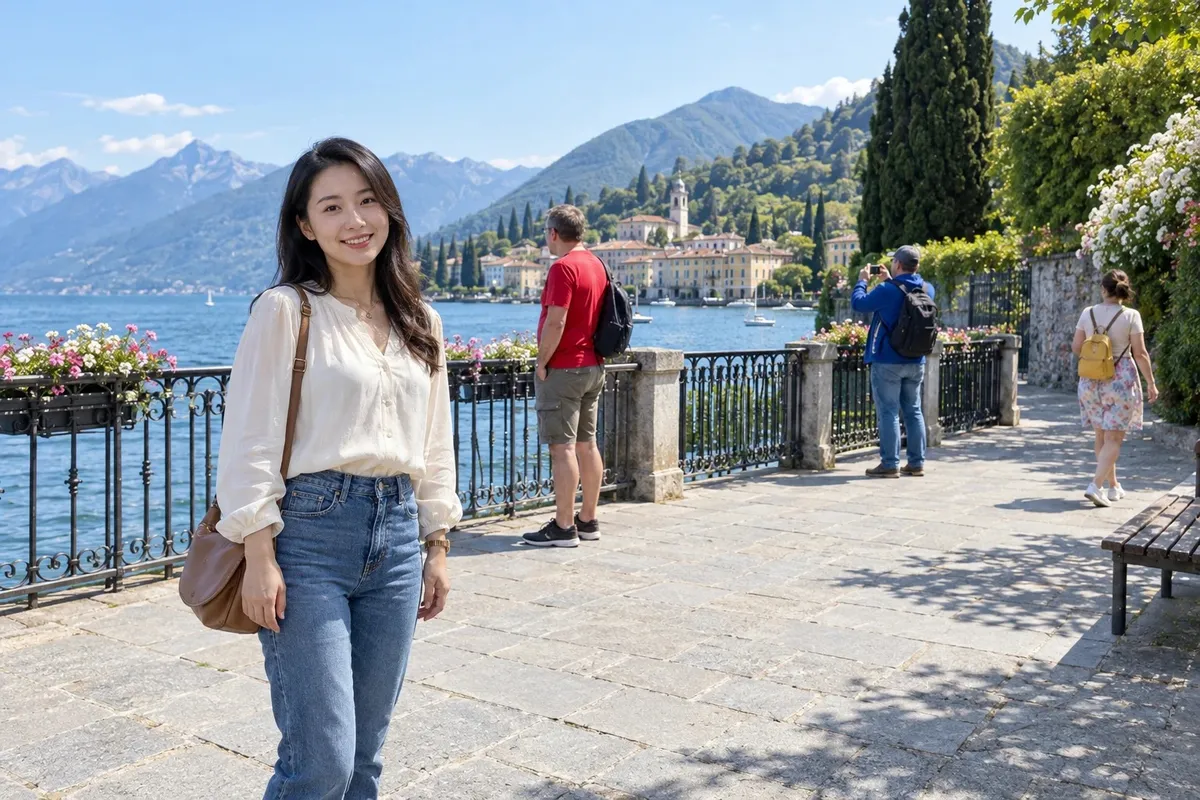 BeforeAfter
A person removed, the rest of the photo untouched
Only the area you brush over changes. In this lakeside photo the man in red is gone, while the woman in front, the photographer and the walker in the back stay exactly as they were.
When to use a person remover
Travel photos
Take tourists out of landmark shots so the view looks the way you remember it.
Busy backgrounds
Remove one or two people at a time from a crowd, then run it again for the next.
Street and event shots
Clear passers-by who wandered into a portrait or a group photo.
Listings and product photos
Remove people from home, rental or product photos before you post them.