

Green Screen Removing Your Green Clothes? Change the Method
ClearRemover ·
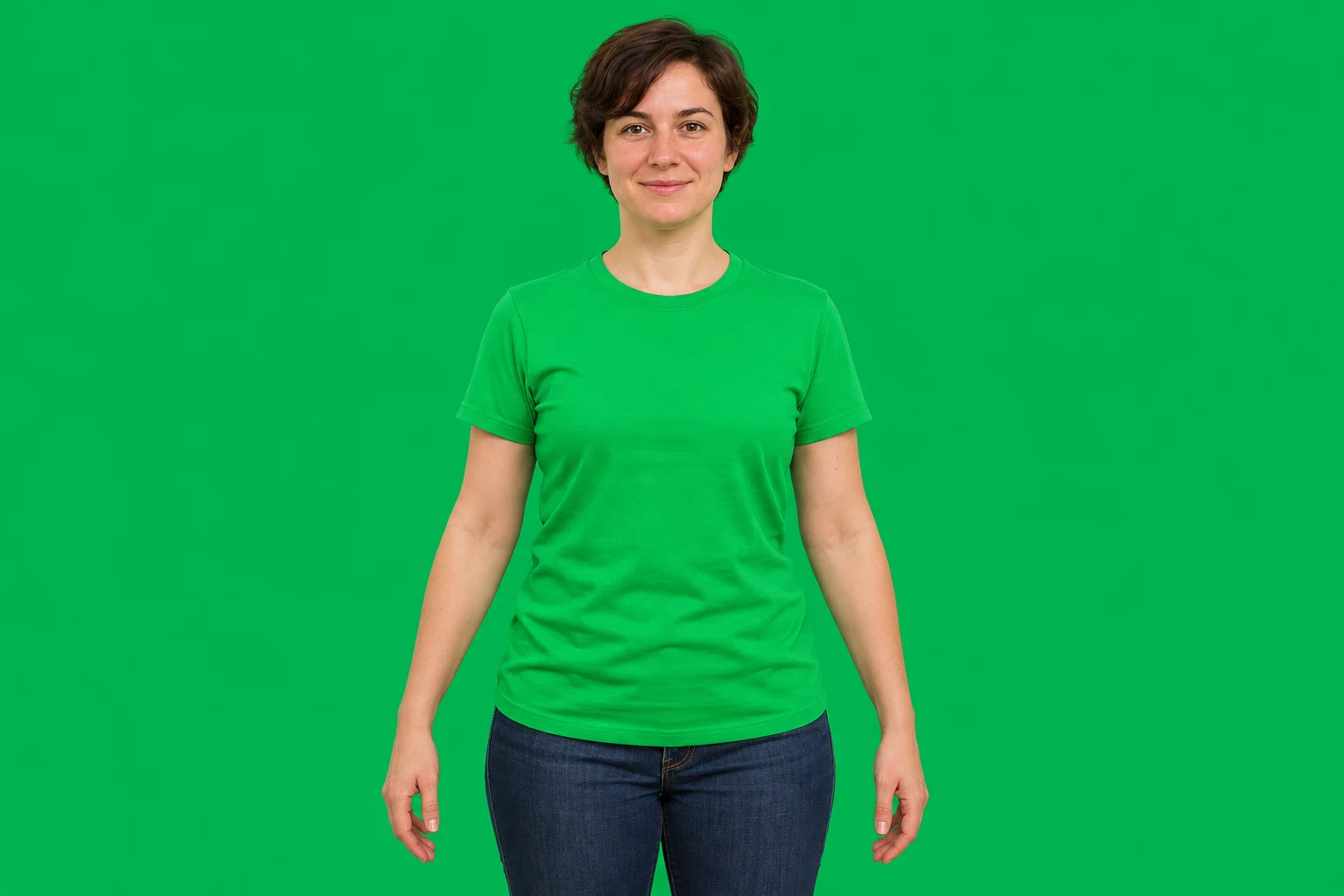
Before
Target cutout
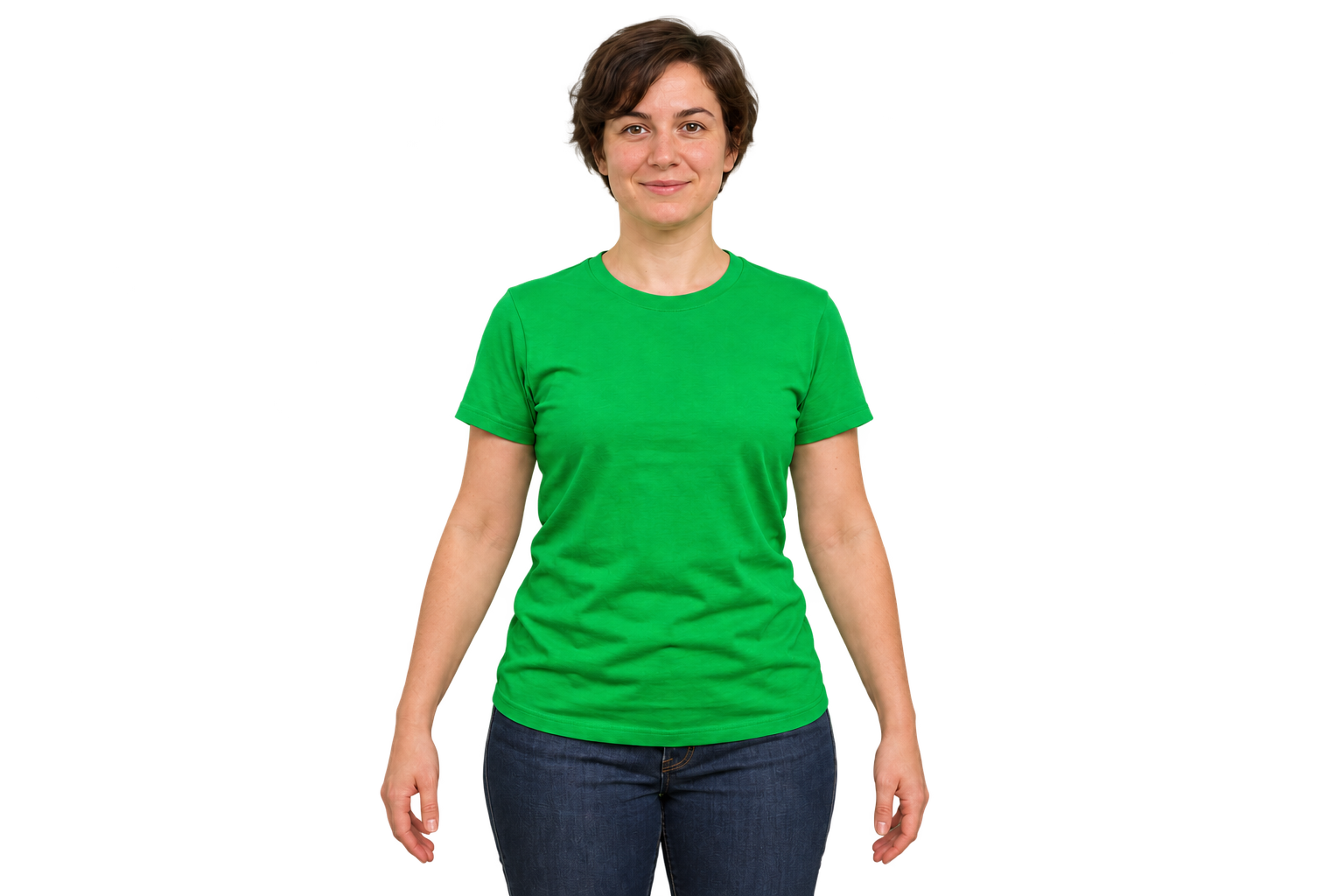
If a green screen remover makes your green shirt disappear, the key is matching the shirt as well as the backdrop. Lowering removal strength may help when their shades differ enough. When both fall within the same color range, use a foreground mask or a different background-removal method. More spill reduction will not restore transparent fabric.
The comparison above shows the goal: keep the green shirt while removing the screen. It is a generated illustration, not a result from ClearRemover's local keyer or cloud AI.
Check for missing fabric, not just a green tint
Look at the torso in the cutout. If the transparency checkerboard shows through the shirt, part of the subject has been removed. If the shirt is solid but its edge looks green, that is a color problem; use the green-spill guide for that separate adjustment.
The screenshot below shows the generated source in the local image green-screen remover, with its initial settings left unchanged:
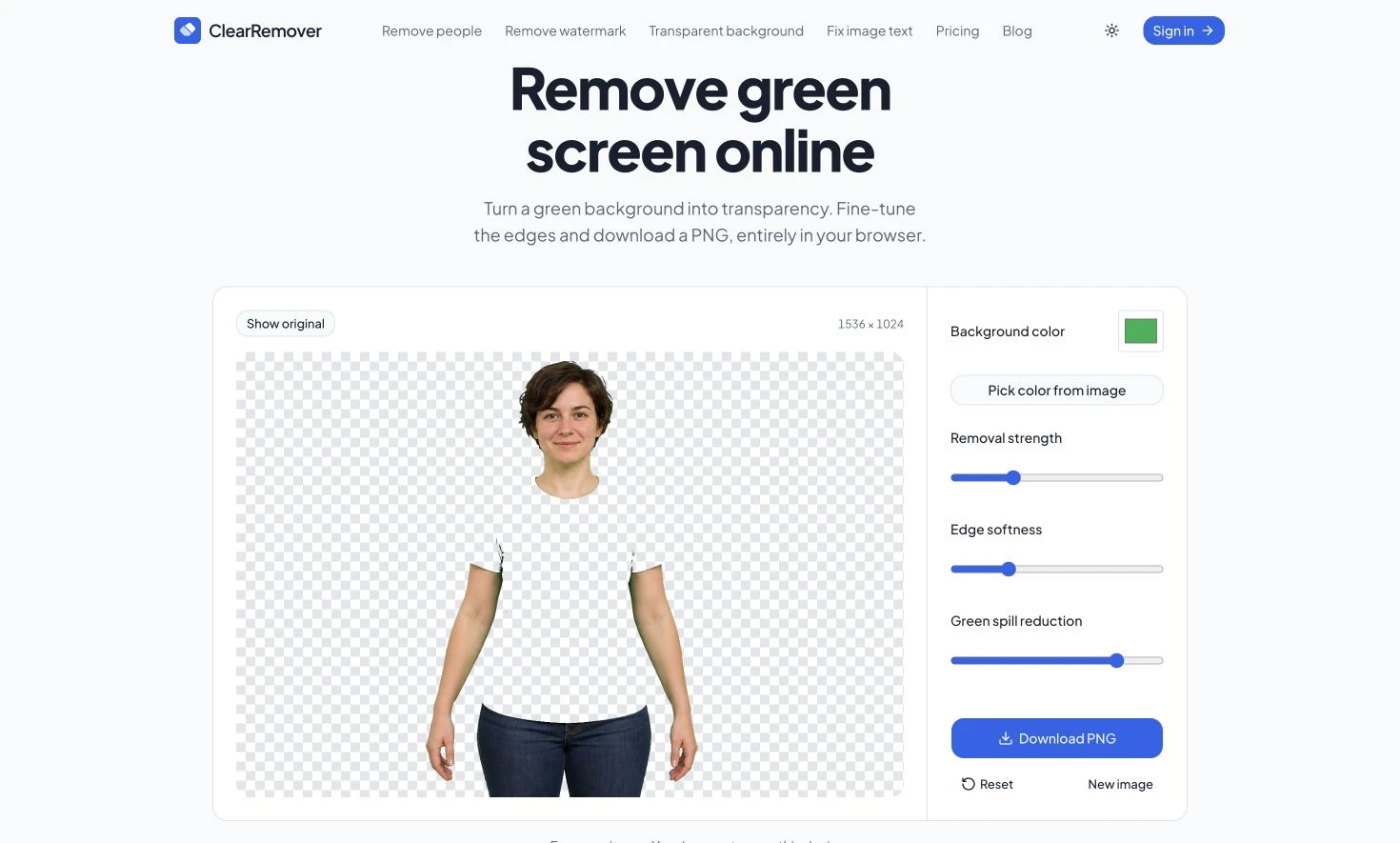
Actual browser preview using a generated source image. The shirt becomes transparent along with the backdrop. Removal strength is 0.14, edge softness 0.08 and spill reduction 0.8; the tool sampled the background color automatically. This is a failure example, not the generated target cutout above.
The key compares color across the whole image. It has no instruction to protect clothing just because it belongs to a person. Adobe's explanation of chroma key identifies green wardrobe as a problem for the same reason and discusses choosing a different screen color.
Try a smaller key range once
Keep the original photo. Work from that file rather than a PNG whose shirt is already transparent.
- Open it in the local green-screen tool and compare the preview with Show original. Identify a patch of shirt and a patch of screen you can watch together.
- Check Background color. If the automatic border sample missed the screen, enable Pick color from image and select the backdrop. Do not sample the shirt.
- Lower Removal strength a little. Watch whether the fabric returns while the background remains clear. If the screen returns with the shirt, you have reached the tradeoff that matters.
- Keep Edge softness modest while judging the torso. A softer transition can change partially transparent pixels, but it cannot tell two similarly colored regions apart by their meaning.
- Stop if each usable shirt setting also leaves an unusable backdrop. This tool has no brush for protecting the shirt or restoring selected areas.
There is no universal slider value. A dark olive jacket against a bright screen may be separable; fabric lit to nearly the same green as the screen may not be. Raising Green spill reduction changes affected green tones near the key. It does not restore opacity to missing fabric.
Choose a method that can protect the shirt
For an existing photo, try subject-based background removal from the original. The automatic background remover uses cloud AI rather than one selected screen color. It may separate clothing from the backdrop, but inspect the result: similar colors, folds and gaps beside the arms can still cause mistakes. The generated target image in this article does not establish how that AI will perform on your photo.
For a cutout that needs local repair, use an editor with a layer mask. Keep an untouched copy of the original beneath the cutout. On the original layer, use a mask to hide everything, then reveal only the shirt where the key removed it. Refine the boundary at the sleeves, waist and gaps beside the arms. A broad rectangle restores green backdrop too, so inspect the outline closely. ClearRemover's local keyer does not currently include this masking workflow.
If you can reshoot, separate wardrobe and backdrop colors. Change the shirt, or choose a backdrop that differs from everything you need to retain. A blue screen can help with green clothing, but first check for blue jeans or accessories. Even lighting helps a key stay narrow; it does not make matching shirt and screen colors distinguishable.
Compare the two ClearRemover tools before switching
| Local key | Cloud AI | |
|---|---|---|
| Selects | A color range | Foreground |
| PNG longest side | Up to 4096 px | Up to 1024 px |
| Cost | Free | Daily allowance, then 1 credit per edit |
| Image processing | On device | Uploaded |
Both tools accept JPG, PNG and WebP up to 20 MB. The local keyer also has a 40-megapixel input limit, and device graphics limits can reduce its maximum output size. It needs no account or credits.
Cloud AI offers one free edit daily without signup, plus one additional daily edit with Google sign-in, subject to availability. Further edits cost one credit each.
The cloud allowance is shared with other eligible AI edits and resets at 00:00 UTC. Check pricing for credit purchases. The local tool needs WebGL and handles still images, not video. Switching methods also changes resolution and upload behavior; see the privacy policy before uploading a sensitive image.
Review the saved cutout over a contrasting background
After downloading the PNG, place it on the background where you will use it. Check the shirt's center as well as its outline. Partially transparent green fabric can look plausible on a similar background and reveal the layer beneath it on another.
Inspect the sleeve openings, waistband and spaces between arms and torso. Keep the original until you have checked those areas at the intended display size. If the saved PNG instead appears to have a solid white rectangle, run the file-versus-viewer transparency checks before processing it again.