

Green Screen Shadow Still Showing? Check the Key Range
ClearRemover ·
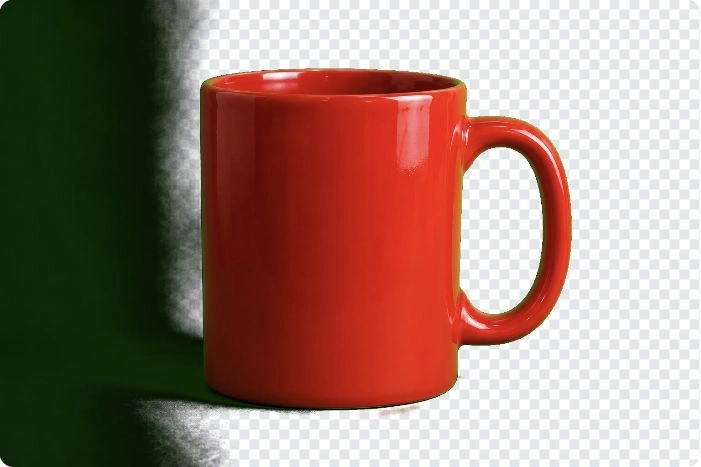
Default key
Adjusted key
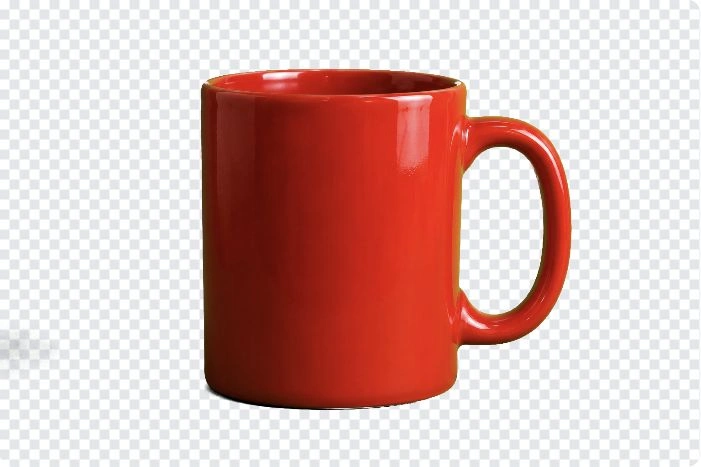
If a dark green shadow remains after removing a green screen, check the background color and the range being keyed out. The lit screen and its shadow can fall into different color ranges. A key that removes the bright area may leave the dark patch visible.
This guide concerns shadows on the backdrop in a still photo. Dark shading on the subject belongs to a different problem: making that shading transparent would remove part of the subject.
What the same-image comparison shows
The comparison above uses a generated red-mug source image. Both views are actual previews from the local image green-screen remover, not a generated ideal result.

The tool sampled the background color as #03d808. With the initial removal strength of 0.14, a dark green strip remained along the left side and below the mug. Changing only removal strength to 0.35 cleared that visible patch in the preview. Edge softness stayed at 0.08 and green spill reduction at 0.8.
At the displayed size, the red mug outline remained visible and the checkerboard showed through the handle opening. That is one observed result on this generated source. It does not establish that 0.35 is suitable for another photo or that every highlight stayed perfectly opaque.
The comparison images are screenshots. Their checkerboard is part of the pictures shown here; they are not transparent PNG downloads. The saved PNG's alpha was not tested for this example.
Locate the shadow before changing the key
Use Show original to identify three areas: a normally lit part of the screen, the darkest screen patch, and a dark part of the subject. Keep watching those same areas as you adjust the preview.
A shadow beside the subject on the screen should usually leave with the backdrop when making a cutout. A dark fold in clothing, the inside of a mug or shading on a face should remain. The key cannot make that distinction by meaning; it compares colors throughout the image.
IMG.LY's explanation of chroma key describes this relationship between key color, tolerance and lighting: a shadow can register as a different screen color, while widening the matching range can also affect the foreground.
If the screen is already gone and only a green tint remains on hair or a reflective edge, use the green-spill guide. Spill reduction changes affected colors; it does not turn a large opaque background patch into empty space.
Adjust while watching the subject
- Open the original photo. Start with the file that still contains the screen, rather than a screenshot of an earlier cutout. Keep that original so you can restart.
- Check Background color. The tool estimates it from the image border. If that sample missed the screen, enable Pick color from image and select a representative patch of backdrop. Avoid sampling the subject or its green reflection.
- Raise Removal strength gradually. Watch whether the dark screen patch clears and whether the subject's darkest parts start fading. Inspect the handle hole, spaces between limbs or similar internal gaps as well as the outside outline.
- Check Edge softness separately. Increasing it can make the transition less abrupt, but a broad translucent band is not the same as a cleanly removed screen. In the mug example, softness was left unchanged so the effect of strength could be compared.
- Compare with Show original again. Stop if clearing the last patch damages the subject. Return to a lower setting rather than treating an empty background as the only success condition.
Picking the very darkest patch is not always the answer. It can move the matching range away from the brighter screen. After changing the sampled color, inspect both regions again instead of assuming the whole backdrop now falls within range.
When one color range is not enough
Very uneven lighting can force a poor tradeoff: the screen disappears only when part of the subject becomes transparent too. Green clothing makes that overlap especially clear; the green-clothes example shows the failure.
This local tool has one key color and global adjustments. It has no protect brush, restore brush or separate keys for different parts of the backdrop. If the subject is being damaged, use an editor with foreground masks or a subject-based selection method. Those controls are not available in this keyer.
If you can take the photo again, light the backdrop more evenly and move the subject away from it to reduce cast shadows. Check the actual screen color in a test frame. Making one corner much brighter does not solve a dark patch elsewhere.
Check the downloaded PNG on its destination
After choosing a usable setting, use Download PNG. Place the saved file over a contrasting background in the editor where you will use it. Check the area that held the shadow, the subject outline and any enclosed gaps. A faint remnant can be easier to see there than on the transparency grid.
Also check highlights and dark foreground details for unwanted transparency. If the file appears to contain a white rectangle or a fixed checkerboard, use the saved-file transparency checks before removing the background again.
The local keyer accepts JPG, PNG and WebP images up to 20 MB and 40 megapixels. Its transparent PNG output is at most 4096 pixels on the longest side; a device's graphics limit can be lower. It handles still images, not video.
Processing runs in the browser without uploading the photo and needs no account or credits. Basic site usage events are covered by the privacy policy. Those conditions apply to this local keyer; they do not describe the site's cloud AI tools.