

Photo Smaller After Object Removal? Check the Saved Dimensions
ClearRemover ·
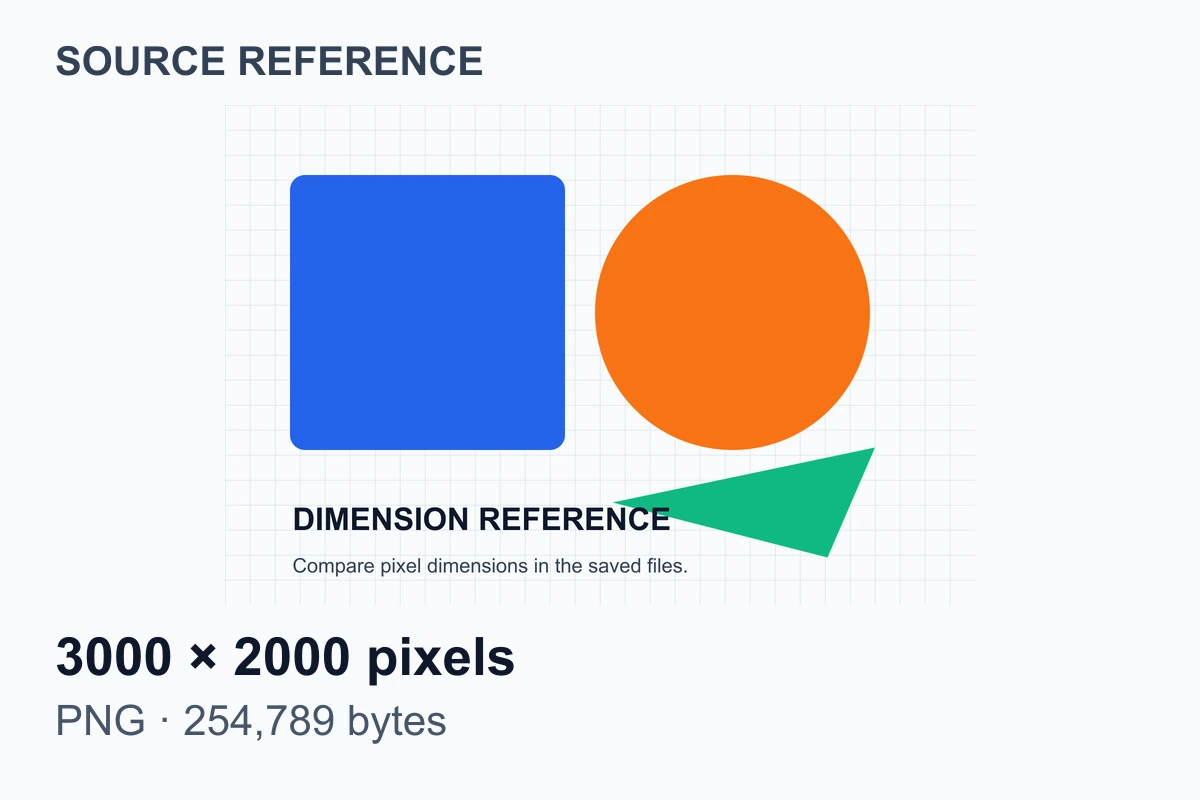
Source file
Resized reference
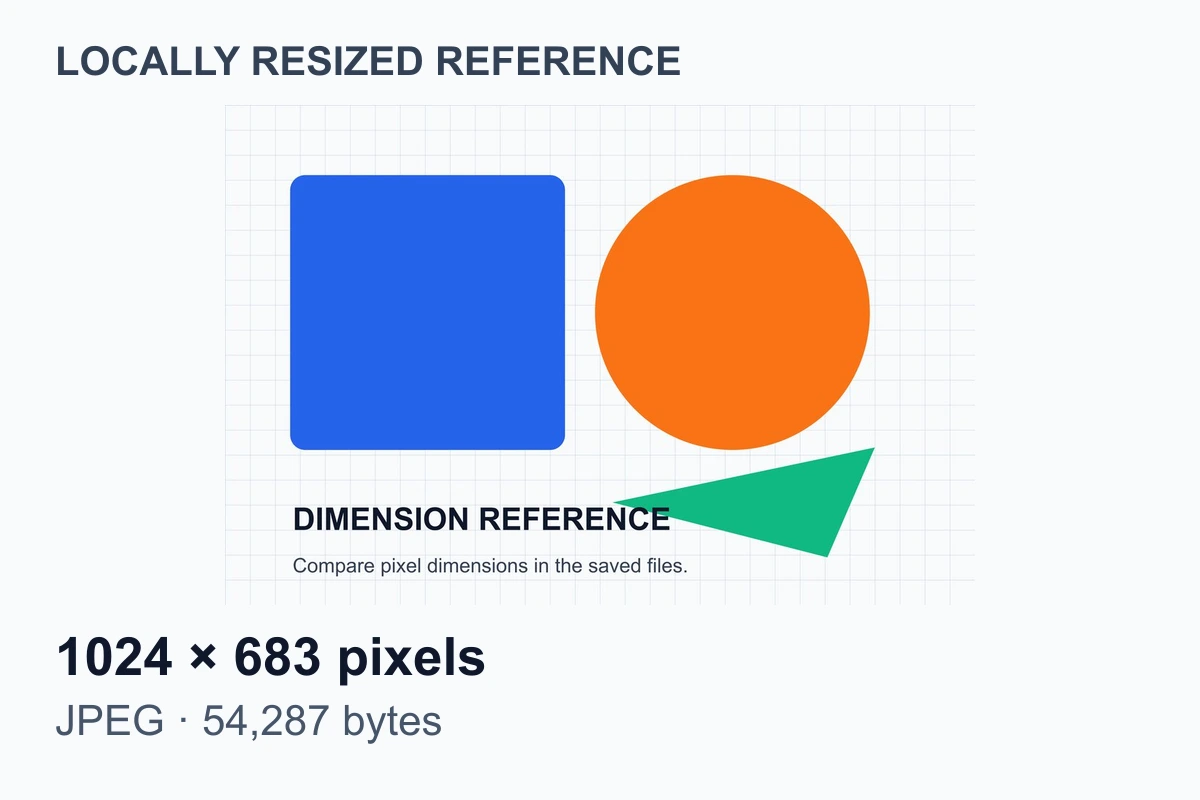
If your photo is smaller after object removal, compare the saved image's pixel dimensions with the original. A drop from 3000 pixels wide to 1024 pixels wide means the image has been resized. A smaller file in KB or MB, with the same width and height, does not establish that pixels were removed.
ClearRemover's Standard object-removal download is a JPG capped at 1024 pixels on the longest side. That limit applies to the whole image, including areas you did not brush. Check it before using the object remover for a large print or a design that needs more pixels.
Check the files, not the fitted preview
The two reference cards above show the same graphic at a similar display size. The downloadable files have different dimensions:
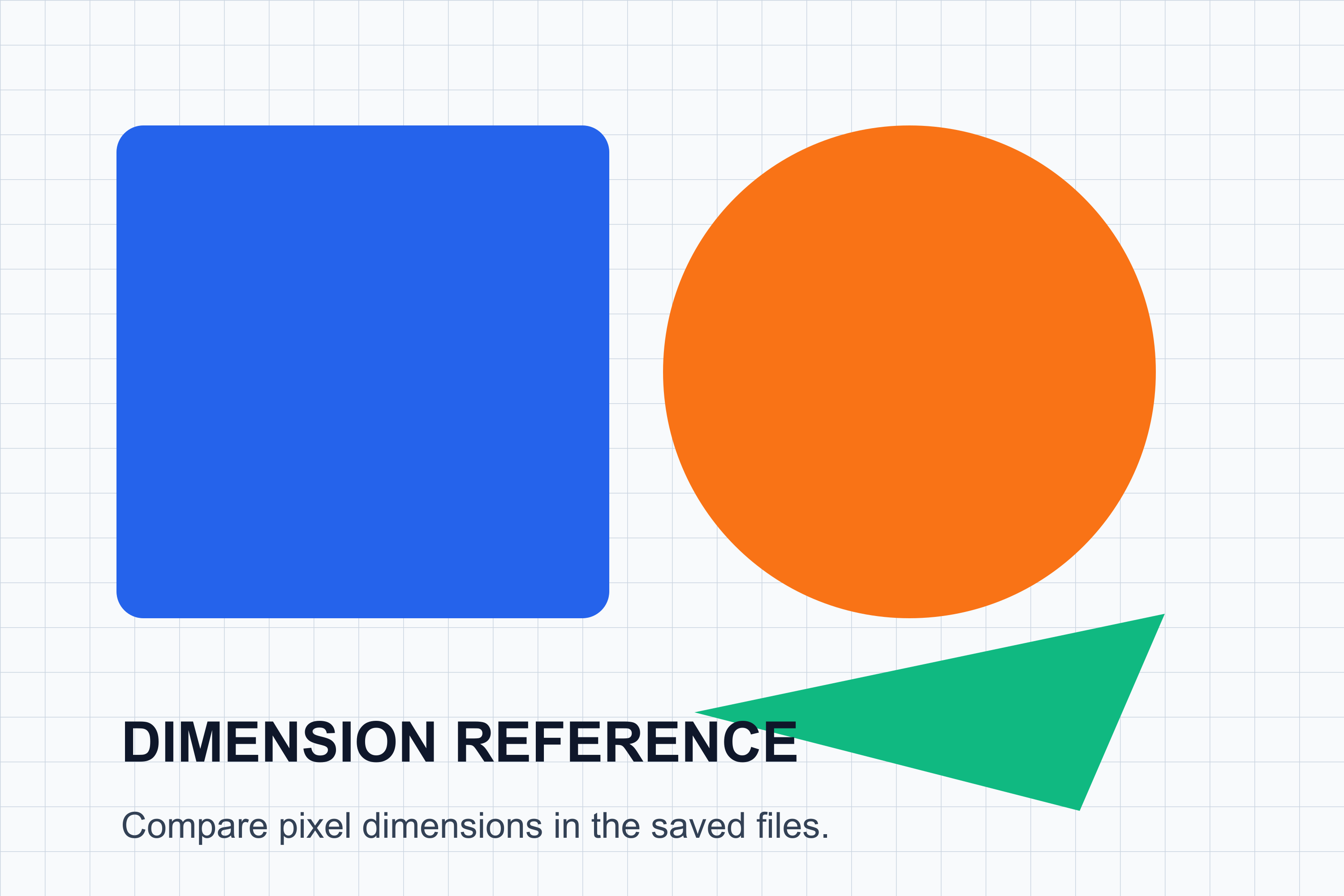
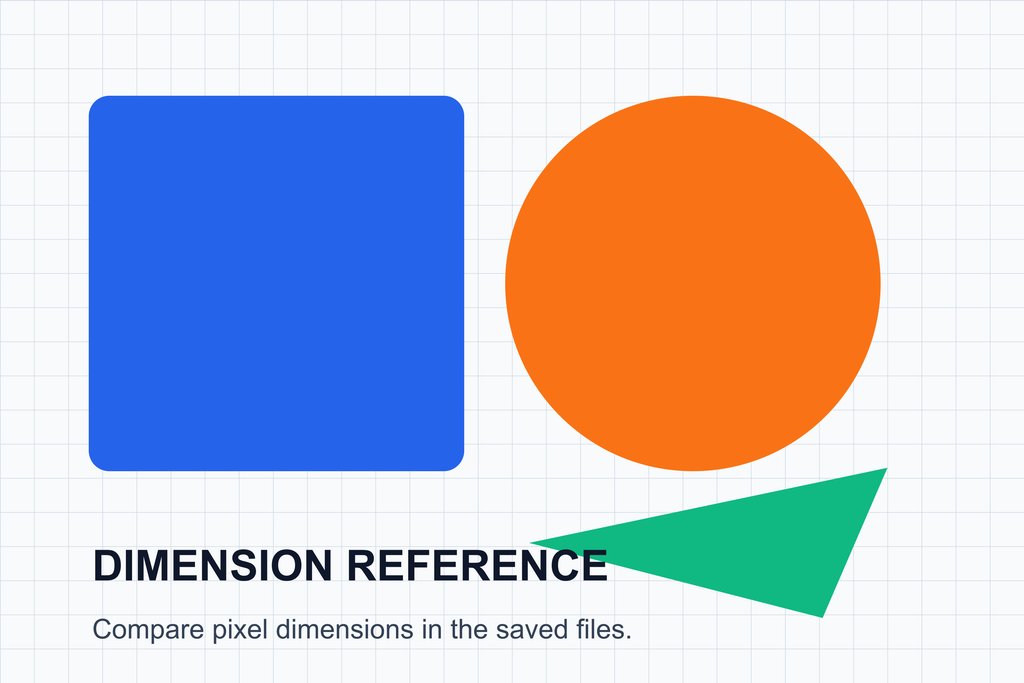
These are constructed diagnostic files. The smaller file was resized locally to show a 1024-pixel limit. No object was erased, no AI service was called, and this is not a production editing result. The cards report the dimensions and byte counts measured from those files.
A page can fit both images into a 350-pixel-wide box, making them look equally large. Download both and inspect their width and height in your image viewer's information panel or an editor's image-size dialog. Use pixels as the unit. The smaller reference contains about 0.70 million pixels; the source contains 6 million.
To diagnose your own edit:
- Keep the original file. Compare the download with the exact file you uploaded, not a thumbnail or a version received through a messaging app.
- Save the result using the download control. A screenshot of the preview measures the screen capture, not the editing output.
- Record width, height, format and file size for both copies. Check whether the frame was cropped as well as resized.
- Inspect the image at actual pixel size. Then view it at its intended display size. A browser's fit-to-window view can hide a reduction in detail.
Where ClearRemover can reduce dimensions
There are two separate limits in the selective-erasing workflow.
Before processing, large uploads are reduced to at most 2048 pixels on the longest side. JPG, PNG and WebP inputs are accepted up to 20 MB. The prepared image is re-encoded as JPEG, so this workflow also changes a PNG or WebP input's encoding. An accepted 3000-pixel-wide source does not mean all 3000 pixels reach the model.
After processing, Standard downloads are reduced to at most 1024 pixels on the longest side. The output keeps its aspect ratio during that resizing step. Smaller model outputs are not enlarged by this step. Exact output dimensions still depend on the generated result; the reference file's 1024 × 683 dimensions are not a promise for every edit.
Painting a small selection does not exempt the rest of the frame from those limits. Even a neatly repaired corner can be part of a smaller downloaded image. Conversely, unchanged dimensions do not prove that every unselected pixel stayed identical: generated editing and JPEG encoding can change image content.
If only the repaired patch looks smeared while the dimensions are as expected, investigate the fill itself. The power-line repair guide covers checking texture and straight edges where a selection crosses the scene.
What HD changes, and what it cannot recover
HD selective erasing requests 2K processing and lets you download the full generated result. It costs 2 credits per erase and must be chosen before starting that processing run. Standard uses the daily allowance or 1 credit per additional erase.
HD does not promise the camera file's original dimensions. A 2K processing request is not an instruction to preserve every pixel from a much larger source. It also does not reverse the upload preparation or recover the exact detail hidden by the removed object. Inspect the actual downloaded dimensions instead of treating the HD label as a resolution measurement.
For a design that needs the original camera dimensions and unchanged surrounding pixels, choose a workflow with an explicit original-resolution export and control over the repaired region. ClearRemover's current selective eraser does not guarantee those requirements.
A smaller file is a separate question
KB and MB measure stored data. Width and height measure pixel dimensions. Encoding, compression, image content and metadata can change the byte count, so file size alone is a poor test for resolution loss.
Changing a file's PPI value also does not restore missing pixels. Adobe's explanation of image size and resampling distinguishes changing print density from adding or removing pixels. Enlarging a 1024-pixel result can create a larger file, but it does not recover discarded camera detail.
If your problem is a missing transparent background rather than smaller dimensions, use the PNG white-background checks. Selective erasing exports JPG; the separate background remover exports transparent PNG, also capped at 1024 pixels on the longest side, without the selective eraser's HD option.
Decide before another processing run
Compare the saved dimensions with the pixel dimensions your destination needs. A small web placement may be usable even when the camera original was larger. A larger crop or print can expose the reduction; judge the actual file at that intended size.
Keep each downloaded version beside the original. Repeatedly erasing the smaller result cannot restore the source's pixel detail and can introduce another generated repair or encoding step.
ClearRemover's shared daily allowance is one Standard edit without an account and one additional Standard edit after Google sign-in, subject to availability. It resets at 00:00 UTC and is shared with background removal. Check current pricing before making another attempt; restarting from the original is another processing run, not a free recovery of the previous file.